Back up and diagnose first
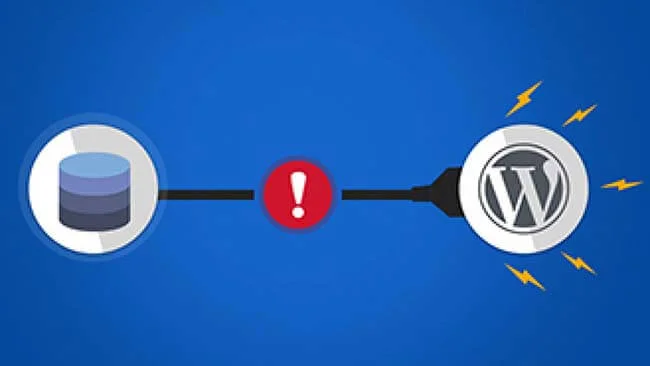
Back up the website files and database before changing anything. The message indicates that WordPress could not connect; credentials, database availability, permissions or damaged tables may be involved. Check the hosting service and error logs.
Check wp-config.php
Compare DB_NAME, DB_USER, DB_PASSWORD and DB_HOST with the actual database settings. DB_HOST is not always localhost. Do not publish the password or configuration file. If a database-user password changes, update the matching configuration value.
define('DB_NAME', 'YOUR_DATABASE_NAME');
define('DB_USER', 'YOUR_DATABASE_USER');
define('DB_PASSWORD', 'YOUR_DATABASE_PASSWORD');
define('DB_HOST', 'YOUR_DATABASE_HOST');
Repair only when needed
If diagnosis indicates damaged tables, back up before using WordPress repair. Temporarily enable WP_ALLOW_REPAIR and open /wp-admin/maint/repair.php on your own domain. Remove the enabling line immediately afterward; the enabled repair page does not require a login.
define('WP_ALLOW_REPAIR', true);Tutorial screenshots
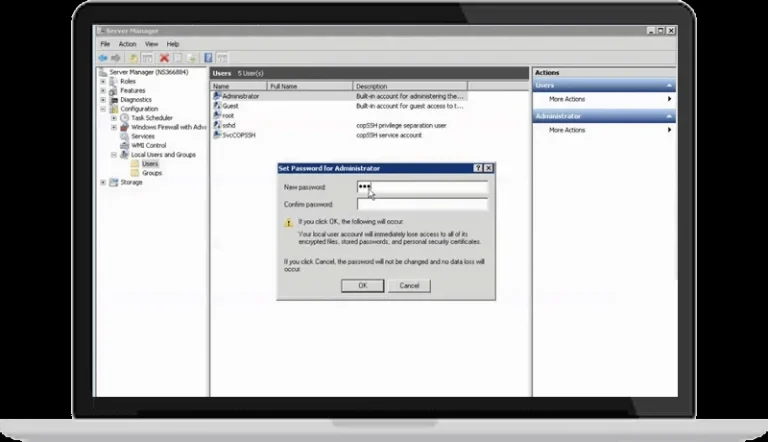
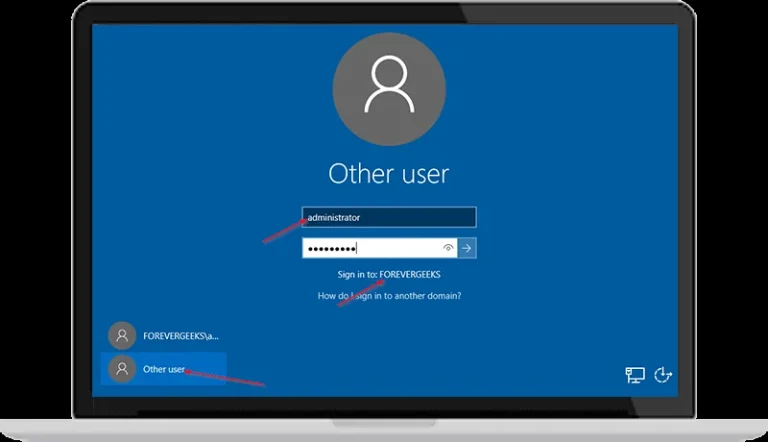
These images belong to the original tutorial; follow the reviewed instructions above where interfaces differ.
References and tutorial links
What does this guide cover?
Check connection details and database availability, and retain a backup before edits or repair.
Do screenshots and videos show the newest interface?
Original media are retained. Interfaces can vary by release; use the reviewed written steps and documentation links.
How can I ask for help with my situation?
Send the service name, release, error message and a description to support. Do not publish passwords or sensitive connection details.
For help related to this guide, explore WordPress technical support